
Optimize YTD Files for FiveM: Fix Oversized Assets
Work out what each texture in a .ytd really costs, find the ones behind the oversized asset warning, and shrink them by hand or with the YTD Optimizer.
Your server console warns that a .ytd uses 42.0 MiB of physical memory, yet the file is under 4 MB on disk. To optimize YTD files for FiveM, you shrink the textures inside them: cap their resolution, use DXT1 for every texture without transparency, and keep the mipmaps. Aim for less than 16 MiB of texture data per file, the point where the server starts to warn.
You can do it by hand with a YTD editor and an image editor that saves DDS files, or in your browser with the YTD Optimizer. Either way, you need the oversized .ytd files from your resource's stream folder and access to your server console. If you're new to texture dictionaries, our overview of GTA V file formats explains where a .ytd fits.
What the oversized asset warning measures
FXServer checks the streamed files in a resource every time the resource starts. When a file's header declares more than 16 MiB of physical or virtual memory, the console prints a line for that file, and the resource's start line counts the warnings:
Asset my-cars/police3.ytd uses 42.0 MiB of physical memory.
Started resource my-cars (1 warning)
The line is printed in a different color above 16, 32 and 64 MiB. Above 48 MiB it adds one more sentence: "Oversized assets can and WILL lead to streaming issues (such as models not loading/rendering)." Players call those streaming issues texture loss, and our FiveM texture loss guide covers what they can change on their side.
Three things about that number matter:
- It isn't the file size. A
.ytdis compressed on disk. The warning reports the memory the file declares for its unpacked contents. Thepolice3.ytdabove, from a community vehicle pack, is 3.89 MB on disk. - Physical memory is the texture data. In a texture dictionary, the virtual part only holds the dictionary itself, the texture names and their headers, so it stays small.
- It's a warning, not a hard limit. The server still streams the file, but Cfx.re forum guides aim to keep every texture dictionary under 16 MiB.
MiB is the binary megabyte (1,048,576 bytes). Windows and the YTD Optimizer show file sizes in the same unit but label it MB.
How YTD texture memory adds up
A texture's memory size comes from three things: its resolution, its format and its mipmaps.
Compressed texture formats store pixels in blocks of 4 × 4. DXT1 packs each block into 8 bytes, which is half a byte per pixel. DXT5 uses 16 bytes per block, one byte per pixel. Uncompressed A8R8G8B8 needs 4 bytes for every pixel.
Mipmaps are smaller copies of the texture (half size, quarter size and so on) that the game draws when a surface is far away. A full chain adds one third to the size of the base texture. Here is what a square texture with a full mip chain costs:
| Resolution | A8R8G8B8 | DXT5, BC5, BC7 | DXT1, BC4 |
|---|---|---|---|
| 4096 × 4096 | 85.3 MiB | 21.3 MiB | 10.7 MiB |
| 2048 × 2048 | 21.3 MiB | 5.3 MiB | 2.7 MiB |
| 1024 × 1024 | 5.3 MiB | 1.3 MiB | 0.67 MiB |
| 512 × 512 | 1.3 MiB | 0.33 MiB | 0.17 MiB |
Three rules come out of this table:
- One 4096 × 4096 DXT5 texture is 21.3 MiB, past the 16 MiB line on its own.
- Halving the width and height cuts the memory to a quarter. Going from 4096 to 2048 saves 75%.
- DXT1 is half the size of DXT5. A 4096 DXT5 texture redone as 2048 DXT1 needs one eighth of the memory: 2.7 MiB instead of 21.3 MiB.
So 16 MiB holds about three 2048 × 2048 DXT5 textures with mipmaps, six in DXT1, or twelve at 1024 × 1024 in DXT5.
DXT1 vs DXT5: pick the right format
These are the formats you're likely to find in a .ytd, and how the YTD Optimizer handles each one:
| Format | Bytes per pixel | Alpha | Typical use | YTD Optimizer |
|---|---|---|---|---|
| DXT1 (BC1) | 0.5 | None, or a hard 1-bit cut-out | Textures without transparency | Supported, treated as opaque |
| DXT3 (BC2) | 1 | Sharp (4-bit) | Rare | Always converted to DXT5 or DXT1 |
| DXT5 (BC3) | 1 | Smooth | Glass, decals, see-through parts | Supported |
| BC4 (ATI1) | 0.5 | No, one channel only | Grayscale masks | Supported |
| BC5 (ATI2, 3Dc) | 1 | No, two channels only | Normal maps | Supported, format always kept |
| BC7 | 1 | Smooth | High-quality color | Not supported: left out of the result |
| A8R8G8B8 | 4 | Full 8-bit | Rarely worth it: uncompressed | Supported, Auto makes it DXT1 or DXT5 |
In practice:
- Use DXT1 for every texture without transparency. Downloaded packs often skip this: across 43 texture dictionaries from community packs, mostly vehicles, 280 of the 567 DXT5 color textures had no transparency at all.
- Use DXT5 only when a texture needs smooth transparency, such as glass and decals. Saving one of these as DXT1 throws the soft alpha away.
- Leave normal maps in the format they already use. They store surface direction, not color, and DXT1 handles them poorly.
- Don't ship large A8R8G8B8 textures. Uncompressed takes eight times the memory of DXT1.
- Keep mipmaps. Dropping them saves 25% of a texture, but distant surfaces start to shimmer.
Method 1: resize and compress a YTD by hand
The manual route works with free tools, one texture at a time:
- Open the
.ytdin a YTD editor such as OpenIV or CodeWalker, and note each texture's name, resolution and format. - Export the textures you want to shrink as DDS files.
- Open each DDS in an image editor that saves DDS, such as Paint.NET, GIMP, or Photoshop with a DDS plugin. Resize it, then save it as DXT1 (no transparency) or DXT5 (transparency) with mipmaps generated.
- Import each texture back into the dictionary under exactly the same name, replacing the original, and save the
.ytd. Models look their textures up by name, so a renamed texture won't be found. - Repeat for every oversized file, then test in game.
It's slow for a pack with dozens of textures per file, and it's easy to save a see-through texture as DXT1 by mistake.
Method 2: optimize YTD files in your browser
The YTD Optimizer does the same job for a whole dictionary in one pass. It runs in your browser, so there's nothing to install, but your file is uploaded to the FiveM Tools server, processed there, and deleted automatically after about 5 minutes.
- Upload. Sign in with Discord, open the YTD Optimizer and drop a
.ytdon the page (100 MB per file at most). Uploading and reading the estimates are free and unlimited. Only the final optimization uses your daily credit. - Read the texture list. Switch to Expert to see every texture with its resolution, format and size. Free accounts can browse this view but not change it. Check the Notes box too: a BC7 warning means that texture will be left out of the result.
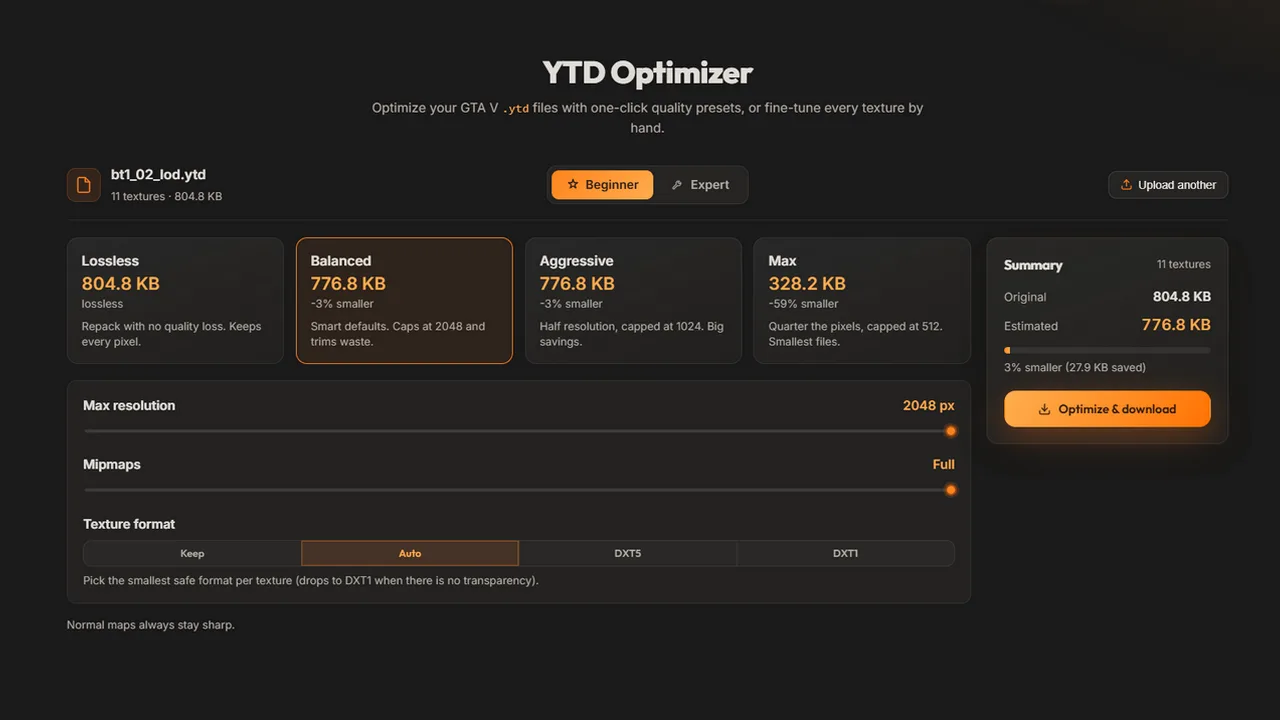
- Pick a preset. Balanced is selected when the file opens. The table below shows what each preset changes.
- Fine-tune if you need to. Max resolution is Original or a cap from 256 to 8192 px, Mipmaps goes from Full down to None, and Texture format offers Keep, Auto, DXT5 and DXT1. Moving a control adjusts the preset, and the estimate updates.
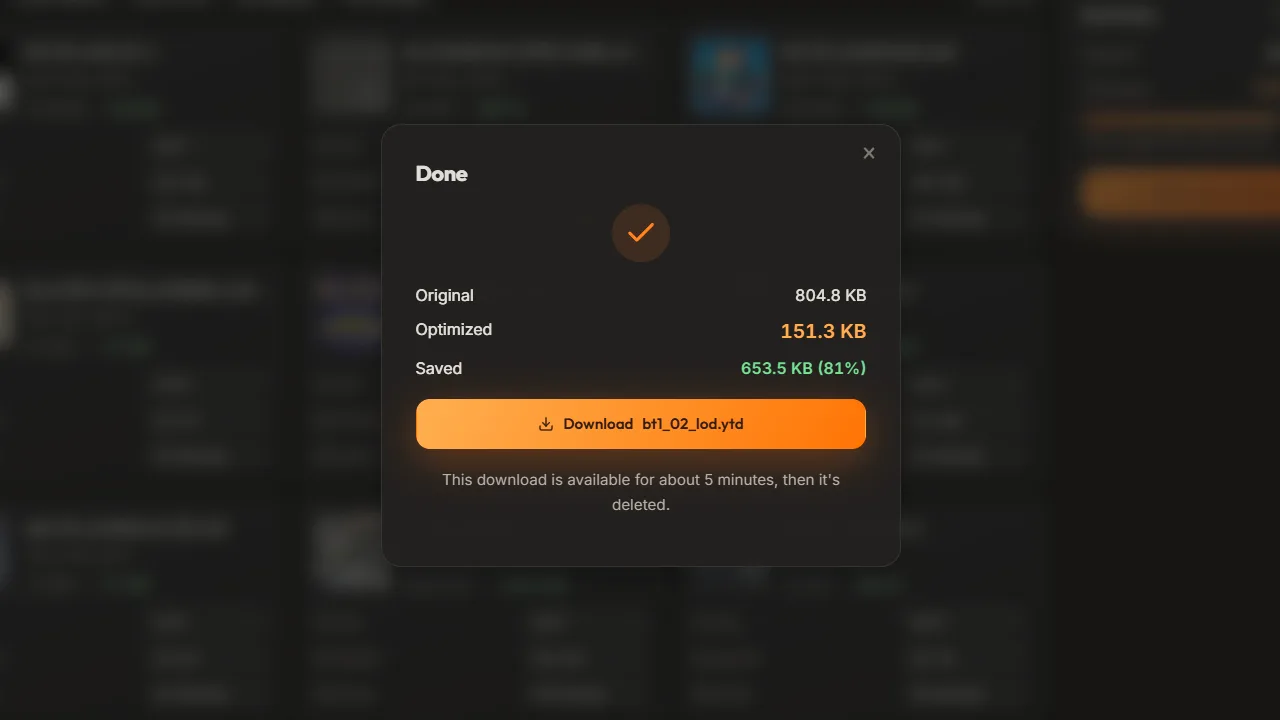
- Optimize and download. Click Optimize & download. The Done dialog shows the real original and optimized file sizes, and the download keeps the original file name.
The presets are caps on the longest side, not fractions. A texture that is already 512 px wide is left at 512 under every preset:
| Preset | Longest side capped at | Format | What it changes |
|---|---|---|---|
| Lossless | No cap | Keep | Almost nothing. DXT3 textures are converted, and textures whose mipmaps go below 4 px are rebuilt. |
| Balanced (default) | 2048 px | Auto | Opaque DXT5 and uncompressed textures become DXT1. Textures with transparency stay DXT5. |
| Aggressive | 1024 px | Auto | The same as Balanced, with a lower cap. |
| Max | 512 px | DXT1 where possible | Every texture without transparency becomes DXT1. Textures with transparency become or stay DXT5. |
None of the presets removes mipmaps, and every texture the optimizer rebuilds gets a full mip chain, even if the original had none. Normal maps (BC5 textures, or names that end in _n, _normal, _norm or nrm) always keep their format, but the resolution cap still applies to them.
Expert mode and the before/after compare
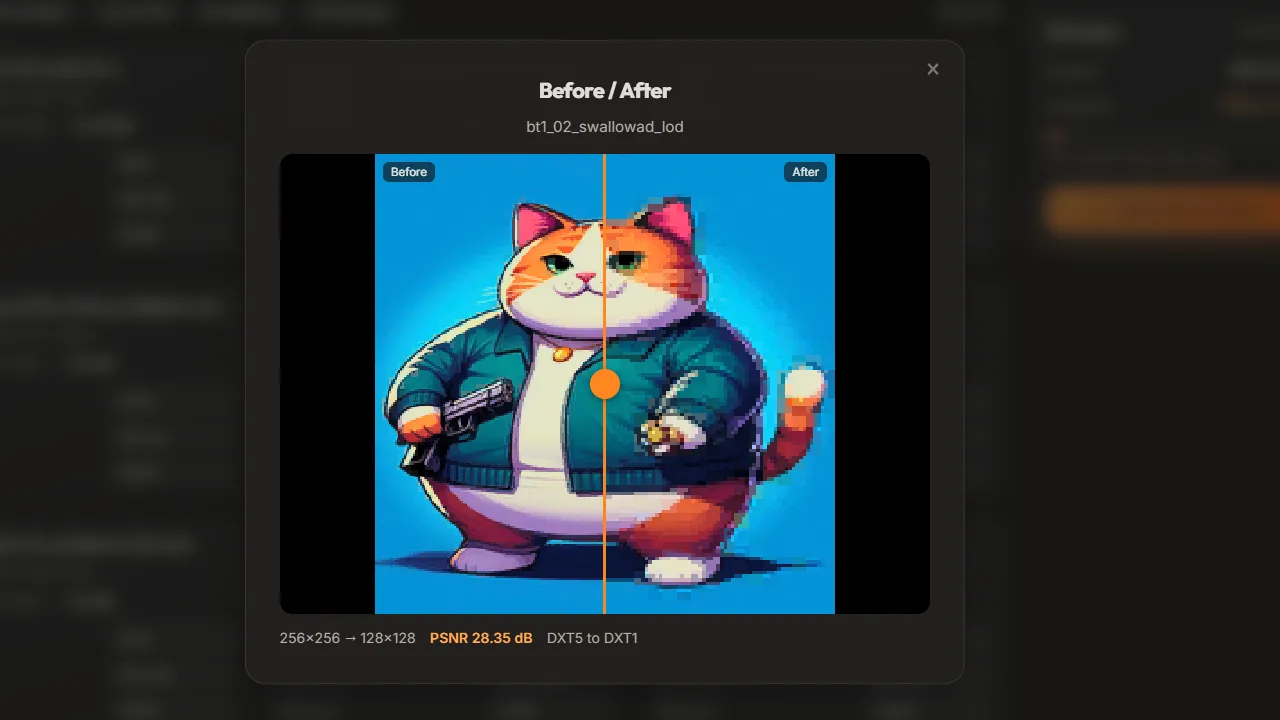
Expert mode and the compare view are for Supporters. Each texture gets its own Format (DXT1, DXT5, BC4, BC5 or A8R8G8B8), Resolution (Original, 1/2, 1/4 and so on, shown as real sizes) and Mipmaps setting. A bar at the top applies Half resolution, Cap at 1024, No mipmaps or Full mipmaps to every texture at once.
Expert changes stack on top of the preset. To leave most of a file untouched, pick Lossless first, then shrink only the textures you choose.
The eye icon on a texture opens a split before/after view with a PSNR score in decibels. Higher means closer to the original, and identical pixels show Lossless (identical) instead. PSNR is measured at the new size, so it shows the compression error. The split view shows the detail lost by shrinking.
A whole resource at once
Supporters can also select a resource folder. Only the .ytd files inside are uploaded (up to 50 files and 500 MB per batch, 100 MB per file), one preset applies to all of them, and you get one zip back with the same folder layout. Expert mode is off in a batch.
See every texture and the estimate for each preset for free, then download a smaller .ytd with the same name.
Real results from three vehicle YTDs
Here is what each preset did to three vehicle texture dictionaries from community packs. Each cell shows the texture data, with the header figure the server checks in brackets. A header figure of 16 or less passes without a warning.
| File | Original | Balanced | Aggressive | Max |
|---|---|---|---|---|
polmav.ytd, 15 textures | 18.2 MiB (20) | 10.3 MiB (16) | 6.3 MiB (8) | 2.0 MiB (4) |
rhinetaxi.ytd, 23 textures | 30.8 MiB (40) | 24.5 MiB (32) | 8.5 MiB (16) | 3.7 MiB (4) |
police3.ytd, 59 textures | 40.0 MiB (42) | 21.8 MiB (32) | 18.7 MiB (32) | 8.5 MiB (16) |
- The download shrinks far less than the memory. Under Balanced,
police3.ytdwent from 3.89 MB to 3.64 MB on disk (6.5% smaller), while its texture data fell by 45%. - One texture can be most of the problem. That file held a 4200 × 4200 DXT5 sign with no mipmaps and no transparency: 16.8 MiB, 42% of the whole dictionary. Balanced turned it into a 2048 × 2048 DXT1 with mipmaps, 2.7 MiB, at a PSNR of 41.5 dB.
- The header figure is rounded up. The optimizer stores all texture data as one block and declares the next power of two (4, 8, 16, 32 MiB and so on). To pass the 16 MiB check, the texture data itself has to fit in 16 MiB: 10.3 MiB is declared as 16 MiB, but 18.7 MiB becomes 32 MiB.
- Balanced isn't always enough. For
police3.ytd, only Max got the header to 16 MiB. Big files may need a lower cap or per-texture work in Expert mode.
Install the optimized YTD and test it
- Keep a copy of the original
.ytdoutside the resource folder. - Put the optimized file in the resource's
streamfolder in place of the original. It has the same name, including suffixes such as+hi, and the texture names inside are unchanged, so nothing else needs editing. For a batch, extract the zip over the resource folder. - Restart the server, or type
refreshand thenensure my-carsin the server console (with your resource's folder name) to restart only that resource. - Read the console. The size check runs again on every start, so the file's line should be gone or show a smaller number, and the
Started resourceline shows how many warnings are left. - Reconnect and look at the asset in game, close up and from a distance. Check glass, decals and other see-through parts first.
Troubleshooting
The warning is still there
The texture data is still over 16 MiB (remember the rounding up to the next power of two). Lower the Max resolution, or shrink the biggest textures one by one in Expert mode. If the warning names a .yft or .ydr, the memory sits in the model file itself (embedded textures or geometry), and the optimizer only opens .ytd files.
A texture is missing after optimizing
Check the Notes box. BC7 textures can't be re-packed, so the optimizer leaves them out of the result and names each one. Convert those textures to DXT5 in another tool first, or keep the original file.
A fence or decal lost its see-through parts
DXT1 can store a hard on/off cut-out, but the optimizer treats DXT1 as fully opaque. When it rebuilds such a texture, the see-through pixels turn solid. In Expert mode, set that texture's Format to DXT5, which keeps the cut-out: at half the resolution it still needs half the memory of the original. Without Expert mode, leave that file as it is.
A normal map looks wrong
The optimizer spots normal maps by format (BC5) or by name. Names such as wall_n_01, EngineA_nrml or INT_LeatherNM don't match, so Auto or Max can turn them into DXT1. Set Texture format to Keep and run the file again.
The upload is rejected or expires
An error ending in gen9-unsupported means the file is a GTA V Enhanced (Gen9) dictionary, which the optimizer can't read. One ending in not-a-ytd means the file isn't a readable Legacy dictionary. Files from escrowed resources are like that: they are encrypted (they start with FXAP, not RSC7), so ask the creator for a lighter version. An "expired" message means the upload was deleted after about 5 minutes, so drop the file again.
The file got slightly bigger
Repacking adds a little overhead, so a file where no texture changes can come back 1 to 2% bigger. Keep the original.
Limits to know
- Legacy format only. The YTD Optimizer reads and writes the PC Legacy (Gen8, RSC7) format that classic FiveM servers use. FiveM for GTA V Enhanced loads assets from
stream_enhanced, and Cfx.re offers a converter called Alchemist. Compatibility of the optimized files with Enhanced servers hasn't been verified. - Estimates are approximate. They can be off by tens of percent either way. Trust the sizes in the Done dialog.
- It shows file sizes, not memory. Use the tables above, or the server console, to check texture memory.
- Texture names longer than 63 characters are cut to 63, which would break the model's reference to them.
- Free accounts get one optimization per day, reset at midnight UTC. Supporter costs $15 a month and adds unlimited optimizations, Expert mode, the compare view and batches.
Frequently asked questions
What is the maximum YTD size for FiveM?
There is no hard maximum: the server streams big files anyway. It warns when a file declares more than 16 MiB of physical or virtual memory, and above 48 MiB the warning adds that oversized assets can and will lead to streaming issues. Aim for less than 16 MiB of texture data per .ytd. That figure is memory, so the file on disk is much smaller.
Should I use DXT1 or DXT5 for GTA V textures?
DXT1 for textures without transparency, and DXT5 for textures with smooth transparency, such as glass and decals. DXT1 needs half the memory of DXT5 at the same resolution, so it is the right default. Normal maps are the exception: keep whatever format they use now.
Does optimizing a YTD lower the texture quality?
It can. A lower resolution removes fine detail, and converting or re-compressing a texture adds small block errors. Compare the result with the original before you replace it, and look at glass, decals and close-up surfaces in game.
Does splitting a YTD into smaller files fix the warning?
It hides the warning without saving memory. The server checks each file on its own, so two smaller files can each stay under 16 MiB, but a model still needs all of its textures on screen, so the game loads the same amount. A lower resolution, and DXT1 where there is no transparency, are what make the textures smaller.
Can I optimize GTA V Enhanced YTD files?
Not with the YTD Optimizer. It only handles PC Legacy (Gen8) texture dictionaries, the format classic FiveM servers use, and it rejects Enhanced (Gen9) files with a gen9-unsupported error.
Try the YTD Optimizer
Shrink your GTA V texture dictionaries. Upload a .ytd, see every texture and its size, then re-compress with smart presets or tune each texture by hand. Free every day, unlimited for Supporters.
Open the YTD Optimizer